
Accessing PixQR
To access and manage PixQR:- Go to your Host Dashboard
- Click on “PixQR” in the navigation menu
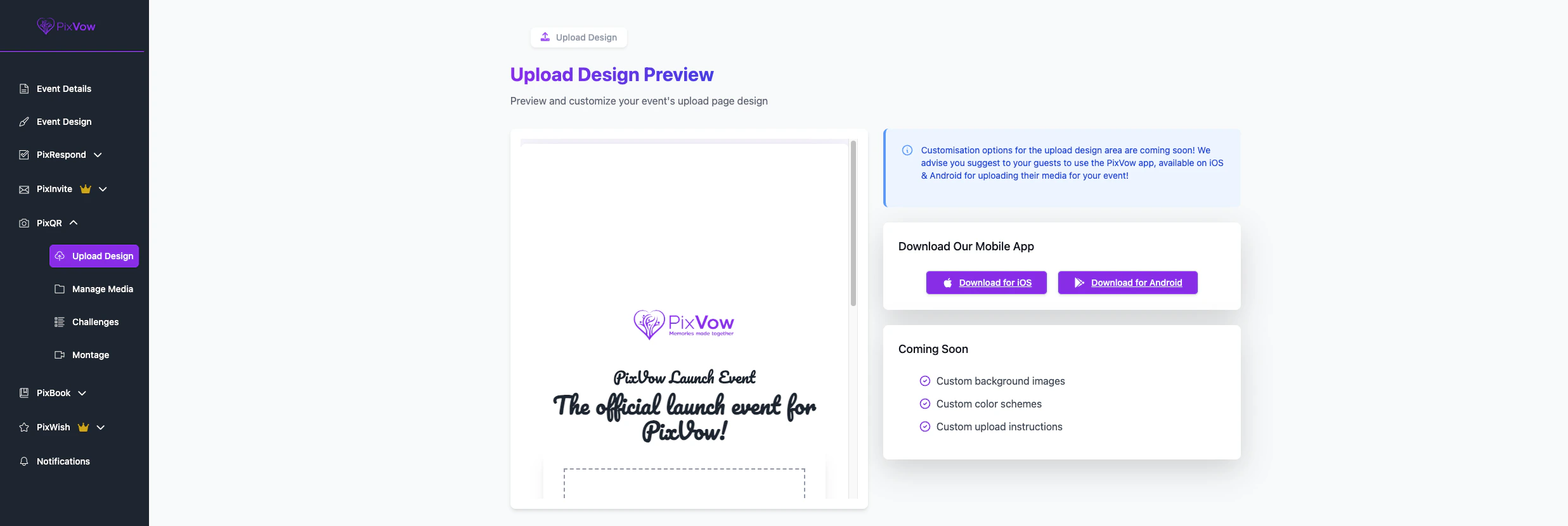
Upload Design Section
In this section, you can view and manage the design that guests will see when they upload media without using the PixVow mobile app.We’re currently working on adding more designs and customisation options to enhance your guests’ upload experience.
Manage Media Section
The Manage Media section allows you to view and control all the media uploaded by your guests for your event. Key features:- View total number of media items, including a breakdown of images and videos
- Download media in bulk using the ‘Download’ button
- View, download, or delete individual media items
Media items managed here will be used for the Montage feature, allowing you to create a comprehensive visual story of your event.
Challenges Section
Challenges is only available for Premium & Ultimate PixVow plans.
- Add a new challenge (e.g., “Best Dancer”, “Funniest Moment”)
- Generate individual or grouped Challenge Cards
- Print these cards and place them around your event venue (e.g. on tables)
- Guests can scan the QR code on these cards to upload media specifically for that challenge
Montage
The Montage feature allows you to create a captivating slideshow of all the media uploaded during your event. Setting up a Montage:- Navigate to the Montage section when you’re ready to showcase your event’s media
- Set up your montage preferences
- Receive a unique link to share with your guests
We’re actively working on adding more design options for the Montage feature to make your media showcase even more impressive.
Best Practices for Using PixQR
- Encourage App Usage: Promote the PixVow mobile app to your guests for the best upload experience.
- Create Diverse Challenges: Mix up your challenges to cater to different interests and capture various aspects of your event.
- Monitor Uploads: Regularly check the Manage Media section to ensure all uploads are appropriate and relevant.
- Strategically Place Challenge Cards: Position your Challenge Cards in areas where guests are likely to engage with them.
- Promote the Montage: Build excitement by letting guests know their uploads will be part of a grand montage at the end of the event.
Troubleshooting
If you encounter any issues while using PixQR:- Ensure your guests have the latest version of the PixVow app installed.
- Check that your QR codes are clearly printed and easily scannable.
- If media isn’t appearing in the Manage Media section, refresh the page or wait a few minutes.
- For persistent problems, contact PixVow support for assistance.