
RSVP Methods
There are three primary ways to submit your RSVP:- Clicking the RSVP button on the event page
- Clicking the RSVP button from a PixVow e-invitation
- Using the PixVow mobile app
The availability of certain RSVP methods may depend on how the event host has set up the invitation process.
Accessing the RSVP Form
Depending on how you access the RSVP form, you may encounter different scenarios:Scenario 1: Authenticated Access
If you’re RSVPing from an e-invitation or the PixVow mobile app while logged into a PixVow account associated with the event, the RSVP pop-up will automatically display with your information pre-filled.Scenario 2: Unauthenticated Access
If you click the RSVP button and we can’t detect your Guest ID, or if you’re not logged in, you’ll be prompted to:- Enter your Guest ID (you can obtain this from the event host)
- Request to join the event (if the host has enabled this option)
If you don’t have a Guest ID and can’t find it, contact the event host directly for assistance.
If you request to join the event and the host has enabled auto-approve, you’ll automatically be registered to the event.
The RSVP Process
Once you’ve accessed the RSVP form, you’ll see a screen similar to this: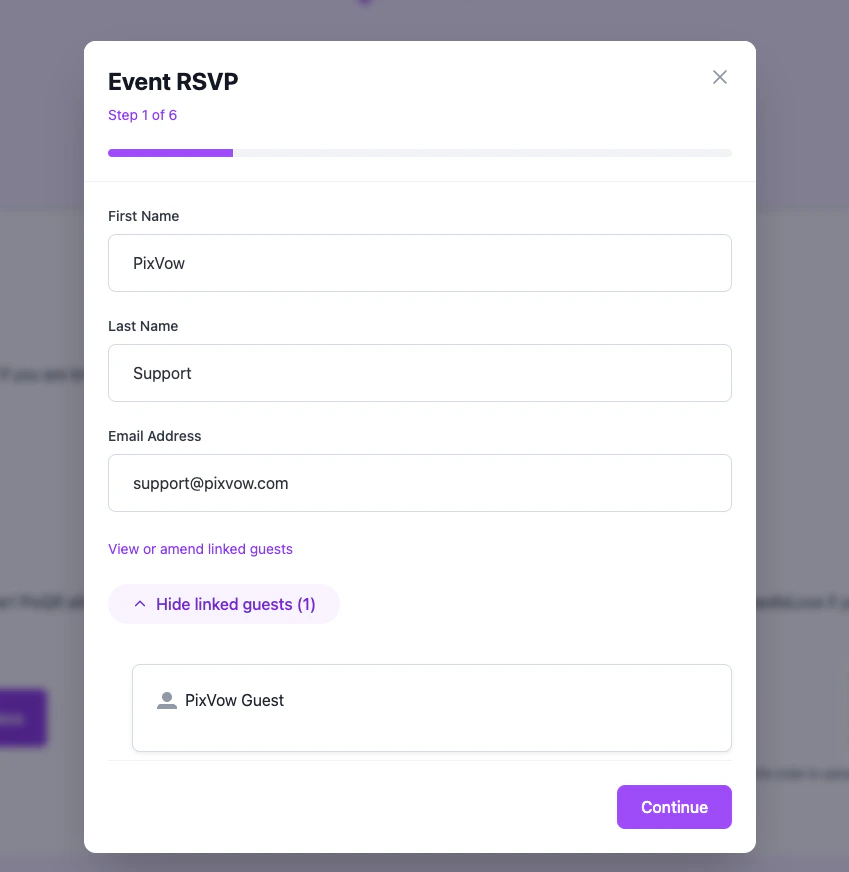
Step 1: Primary Guest Details
The first screen of the RSVP pop-up will display the details of the Primary Guest (you). Verify that this information is correct. If the host has allowed for additional guests, you’ll see an option to “View linked guests.” Clicking this will allow you to:- See additional guests the host has associated with your invitation
- Add additional guests (if permitted by the host)
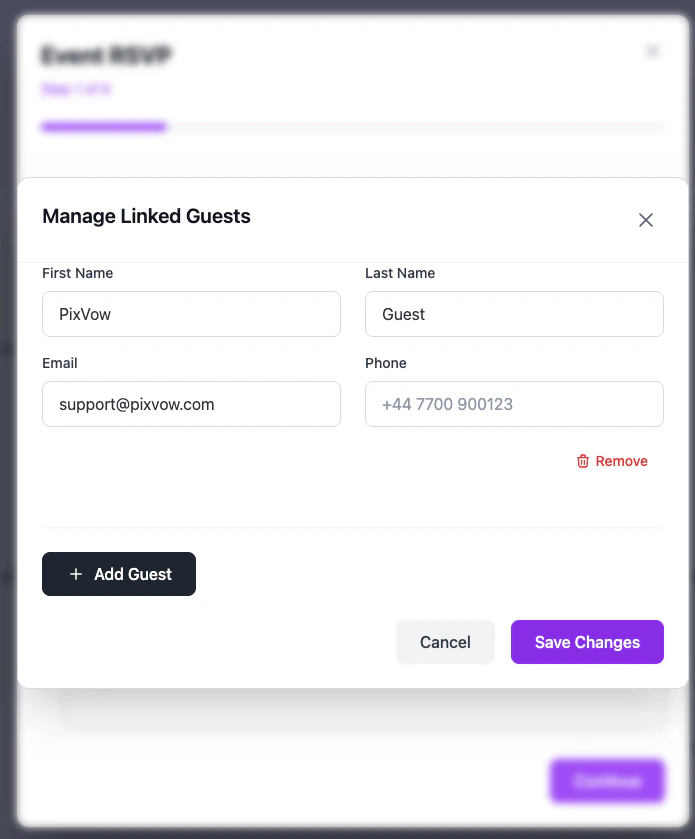
Step 2: Answering RSVP Questions
The host may have set up various questions for you (and any linked guest) to answer as part of the RSVP process. These might include:- Attendance confirmation
- Meal preferences
- Dietary restrictions
- Other event-specific questions
After submitting, you may receive a confirmation email or see a confirmation message on the screen. The exact process may vary depending on the host’s settings.
Updating Your RSVP
If you need to change your RSVP after submitting:- Return to the event page or e-invitation
- Click the RSVP button again
- Make your changes
- Resubmit your RSVP
Troubleshooting
If you encounter any issues during the RSVP process:- Ensure you’re using the correct Guest ID
- Check that you’re logged into the correct PixVow account (if applicable)
- Contact the event host if you’re having persistent problems