
PixInvite for email invites is available on Premium & Ultimate plans.
PixInvite for SMS invites is available exclusively on the Ultimate plan.
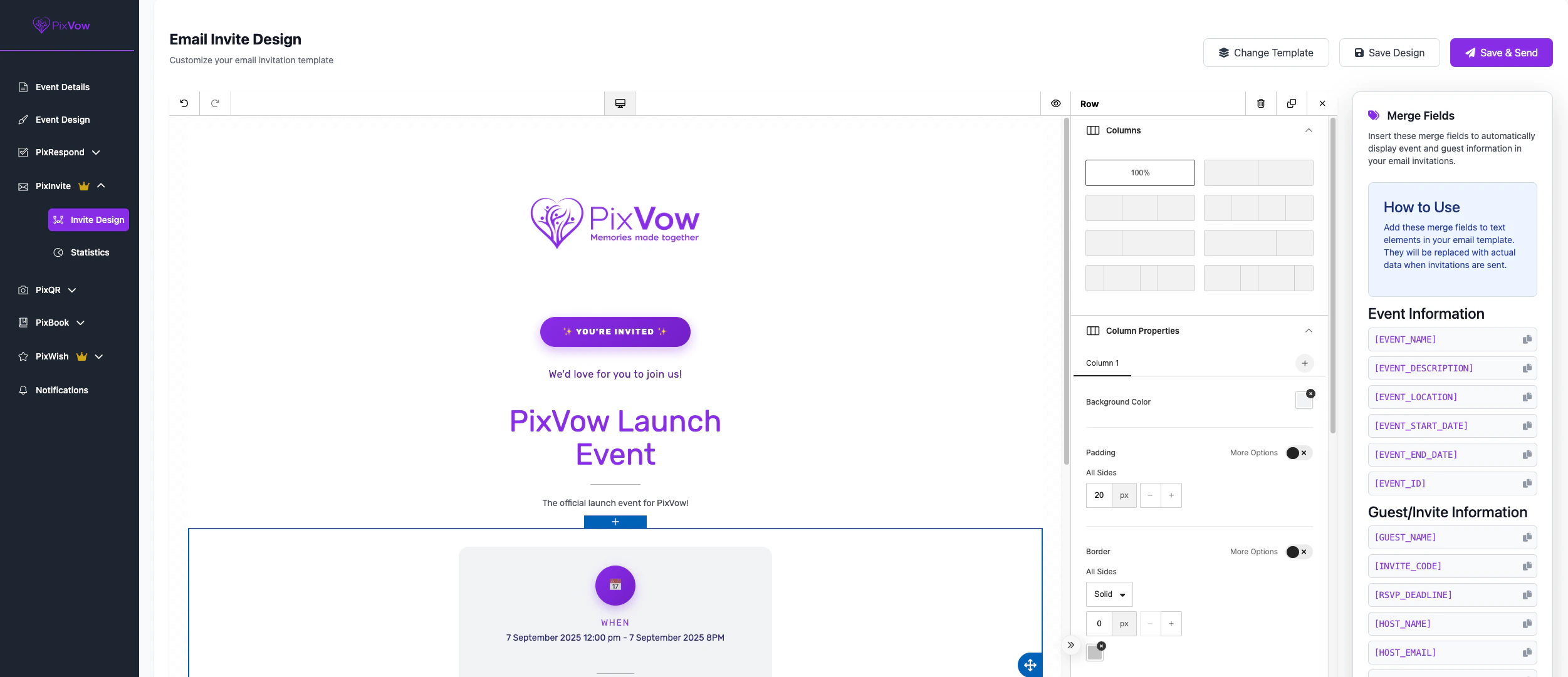
Email Invitations
Designing Your Email Invite
- Navigate to your Host Dashboard and select PixInvite.
- Click on “Invite Design” to open the design interface.
- You’ll land on the Email tab, where you can design your invitation.
- Choose your preferred template from the available options to get started.
Sending Email Invites
- Once you’re satisfied with your design, click “Save & Send”.
- You’ll be prompted to enter a subject line. The default is “You’re invited to [Your Event Name]”.
- Click “Next” to choose your recipient list:
- Primary Guests who haven’t been marked as invited yet
- All Primary Guests regardless of their invite status
- Specific guests
SMS Invitations
Designing Your SMS Invite
- In the Invite Design area, click on the SMS tab.
- You’ll see the SMS Invite Designer with default text provided.
- Edit this text to personalize your message.
- You can add fields such as your event name and start date using the available options.
Sending SMS Invites
- Once your SMS invite is ready, click “Save & Send”.
- Confirm that you want to send the text to all primary guests.
Only guests with a valid UK phone number & have valid consent will receive the text message. Guests will receive the text message from an account named ‘PixVow’. Guests can opt out of receiving any further SMS messages by clicking the link that will be appended to your message.
Deliverability & Analytics
After sending your invitations, you can view statistics to track their delivery:- Go to your Host Dashboard and select PixInvite.
- Click on “Statistics” to view analytics.
- Here you’ll see a list of any email bounces, indicating guests who didn’t receive their email invitation.
Best Practices for Using PixInvite
- Clear Information: Ensure all essential event details (date, time, location) are clearly visible.
- Consistent Branding: Match your invitation design to your event’s theme or your personal style.
- Mobile-Friendly: Remember that many recipients will view your email invite on mobile devices, so keep the design responsive.
- Timing: Send invitations well in advance of your event, but not so early that guests forget.
- Follow-Up: Use PixInvite in conjunction with PixRespond to easily track responses and enable Follow-up Reminders under PixRespond Configuration to remind your guests to RSVP.
Troubleshooting
If you encounter any issues while using PixInvite:- Ensure all required fields are filled in your designs.
- Check that your guest list has correct and up-to-date contact information.
- If emails aren’t being received, ask guests to check their spam folders.
- For persistent problems, contact PixVow support for assistance.