> ## Documentation Index
> Fetch the complete documentation index at: https://docs.pixvow.com/llms.txt
> Use this file to discover all available pages before exploring further.
# PixWish
> Learn how to create and manage your event wishlist using PixWish
PixWish is only available on the Ultimate plan.
PixWish is a powerful wishlist management feature that allows you to create and manage a wishlist for your event. Guests can view your wishlist and mark items as purchased, making gift-giving easy and organized.
## Accessing PixWish
To access and manage your wishlist:
1. Go to your Host Dashboard
2. Click on "Manage Wishlist" in the navigation menu
Here, you'll see all the items you've currently added to your wishlist.
## Adding Wishlist Items
To add a new item to your wishlist:
1. Click on "Add Wishlist Item"
2. A modal/pop-up will appear
### Using PixAssist for Item Details
1. Enter the URL of the item/product you want to add
2. Click "Next"
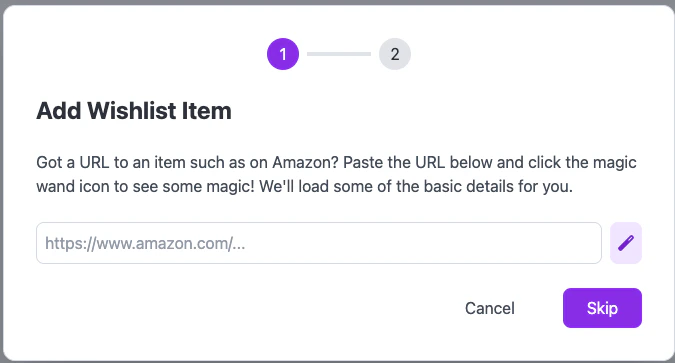 When entering a URL, it may take a minute or so for PixAssist to extract the details. Please be patient while our AI system works its magic!
PixAssist, our smart AI system, will extract relevant details of the item and populate them in the next stage for you.
### Manual Entry
If you prefer to enter details manually or if PixAssist couldn't extract the information:
1. Click "Skip" in the URL entry screen
2. You'll be taken directly to the manual entry form
## Entering Item Details
Whether using PixAssist or manual entry, you'll see a form to enter or edit item details:
When entering a URL, it may take a minute or so for PixAssist to extract the details. Please be patient while our AI system works its magic!
PixAssist, our smart AI system, will extract relevant details of the item and populate them in the next stage for you.
### Manual Entry
If you prefer to enter details manually or if PixAssist couldn't extract the information:
1. Click "Skip" in the URL entry screen
2. You'll be taken directly to the manual entry form
## Entering Item Details
Whether using PixAssist or manual entry, you'll see a form to enter or edit item details:
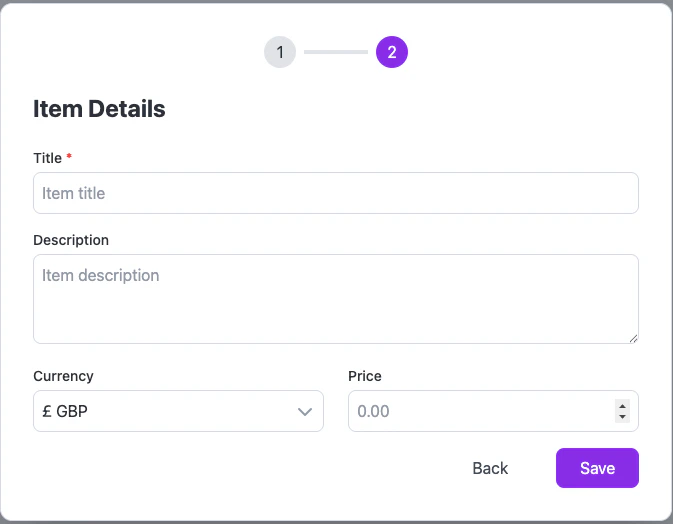 Fill in the following details:
* Title
* Description
* Currency
* Price
Once you're satisfied with the details, click "Save" to add the item to your wishlist.
Be as specific as possible in your item descriptions to help guests understand exactly what you're wishing for.
## Managing Your Wishlist
After adding items, you can:
* Edit item details
* Remove items from the wishlist
## Guest Interaction with PixWish
Once you've added items to your wishlist:
* Guests will be able to view your wishlist
* They can mark items as purchased to avoid duplicate gifts
## Best Practices for Using PixWish
1. **Diverse Price Range**: Include gifts at various price points to accommodate all guests
2. **Regular Updates**: Keep your wishlist up-to-date, removing items that are no longer needed
3. **Clear Descriptions**: Provide clear, detailed descriptions to avoid confusion
4. **Use PixAssist**: Leverage PixAssist to save time when adding items from online stores
## Troubleshooting
If you encounter any issues with PixWish:
* Ensure you're on the Ultimate plan
* Check your internet connection if PixAssist is slow to respond
* Try using a different browser if you're having trouble with the interface
* Contact PixVow support for any persistent issues
PixWish is designed to make gift management easy and enjoyable for both you and your guests. By effectively using this feature, you can ensure that your event gifts are well-organized and align with your wishes.
Fill in the following details:
* Title
* Description
* Currency
* Price
Once you're satisfied with the details, click "Save" to add the item to your wishlist.
Be as specific as possible in your item descriptions to help guests understand exactly what you're wishing for.
## Managing Your Wishlist
After adding items, you can:
* Edit item details
* Remove items from the wishlist
## Guest Interaction with PixWish
Once you've added items to your wishlist:
* Guests will be able to view your wishlist
* They can mark items as purchased to avoid duplicate gifts
## Best Practices for Using PixWish
1. **Diverse Price Range**: Include gifts at various price points to accommodate all guests
2. **Regular Updates**: Keep your wishlist up-to-date, removing items that are no longer needed
3. **Clear Descriptions**: Provide clear, detailed descriptions to avoid confusion
4. **Use PixAssist**: Leverage PixAssist to save time when adding items from online stores
## Troubleshooting
If you encounter any issues with PixWish:
* Ensure you're on the Ultimate plan
* Check your internet connection if PixAssist is slow to respond
* Try using a different browser if you're having trouble with the interface
* Contact PixVow support for any persistent issues
PixWish is designed to make gift management easy and enjoyable for both you and your guests. By effectively using this feature, you can ensure that your event gifts are well-organized and align with your wishes.